Getting Started
Launch your Wallet pass club
Give fans a branded Apple Wallet pass, hand them a link or QR to join, reward them for turning up, and beam updates straight to their lock screen. No app for fans to install.
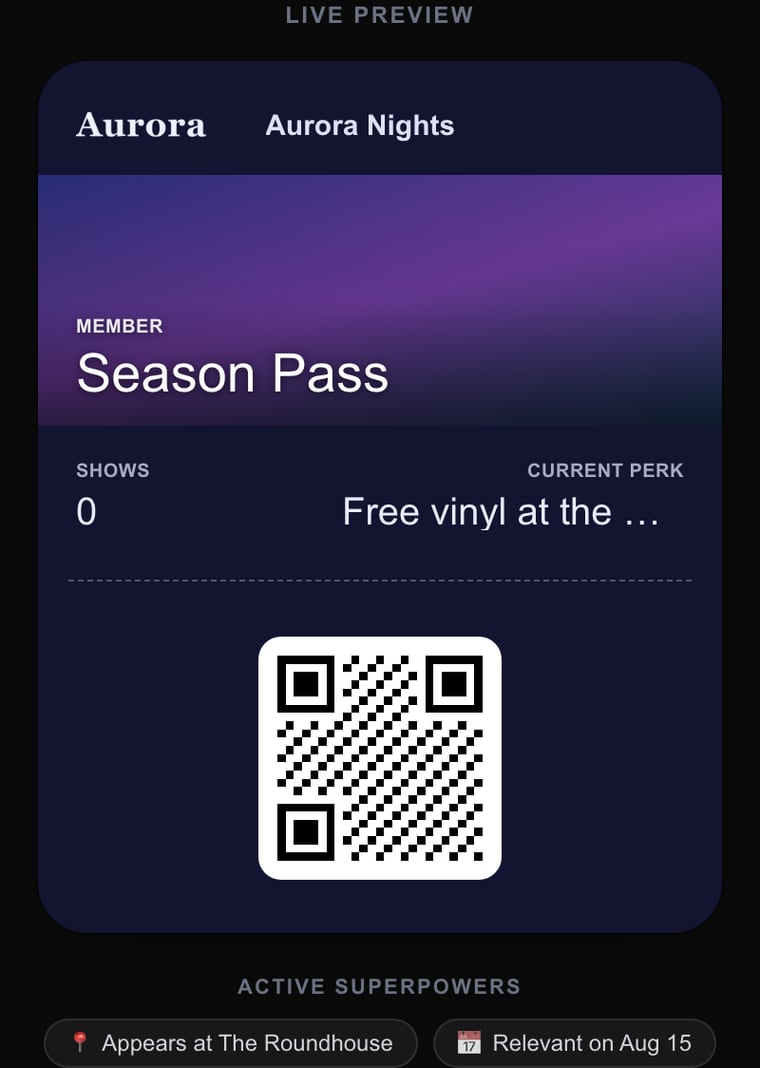
Why members love it
What your fans get
Beyond your content, the format itself is an easy yes — here's what wins fans over.
No personal data needed
Fans join in a tap. Email is optional — no account, no password, no profile to fill in.
Nothing to download
It lives in Apple Wallet, already on every iPhone. No app, no storage, no updates to chase.
No social network required
Reach fans directly on their lock screen — no algorithm to fight, no platform they have to follow.
Not tracked or sold
No ad networks, no data harvesting. It’s just a pass sitting on the device.
Fans stay in control
No inbox to unsubscribe from — a fan can remove the pass any time, straight from Wallet.
There at the right moment
The pass and its QR work offline and surface on the lock screen around your events and venue.
Create your club
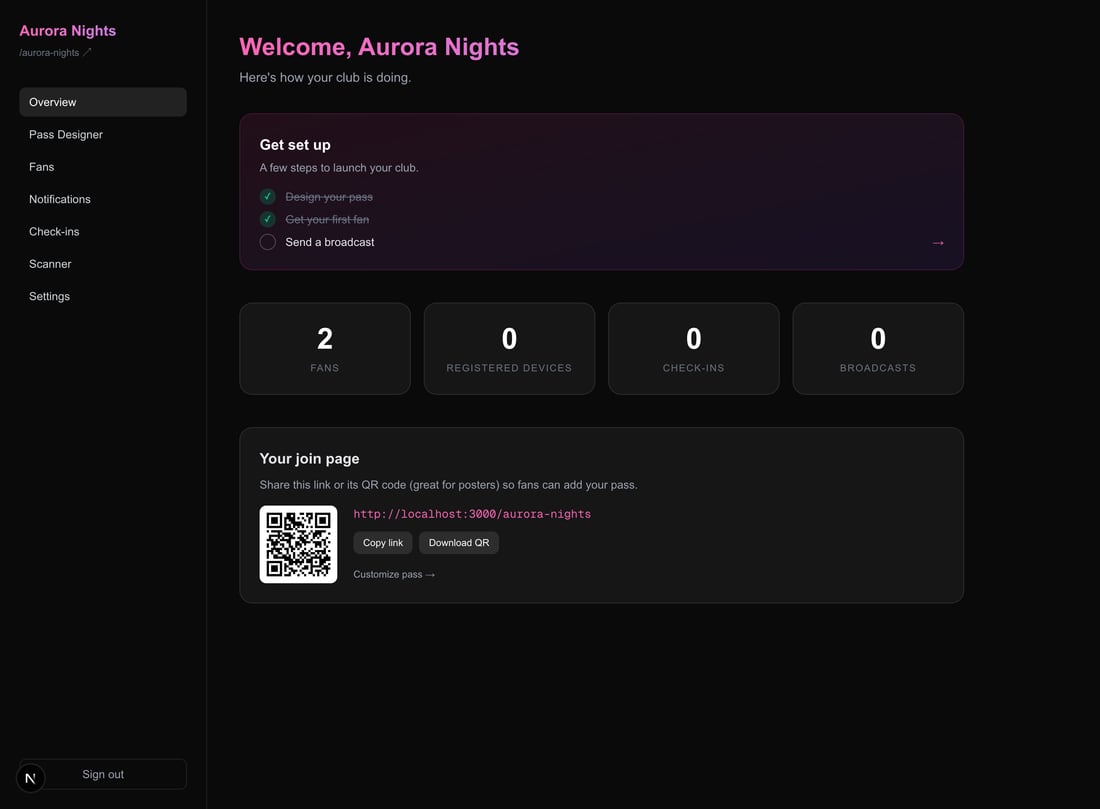
Sign up with your artist or club name, an email, and a password — that's it. You land on your dashboard, where a short checklist walks you through the essentials. Your club also gets its own public join page at /your-name.
Design your pass
Everything about how your pass looks and reads lives in Pass Designer. A live preview on the right mirrors every change as you make it — what you see is exactly what fans get.
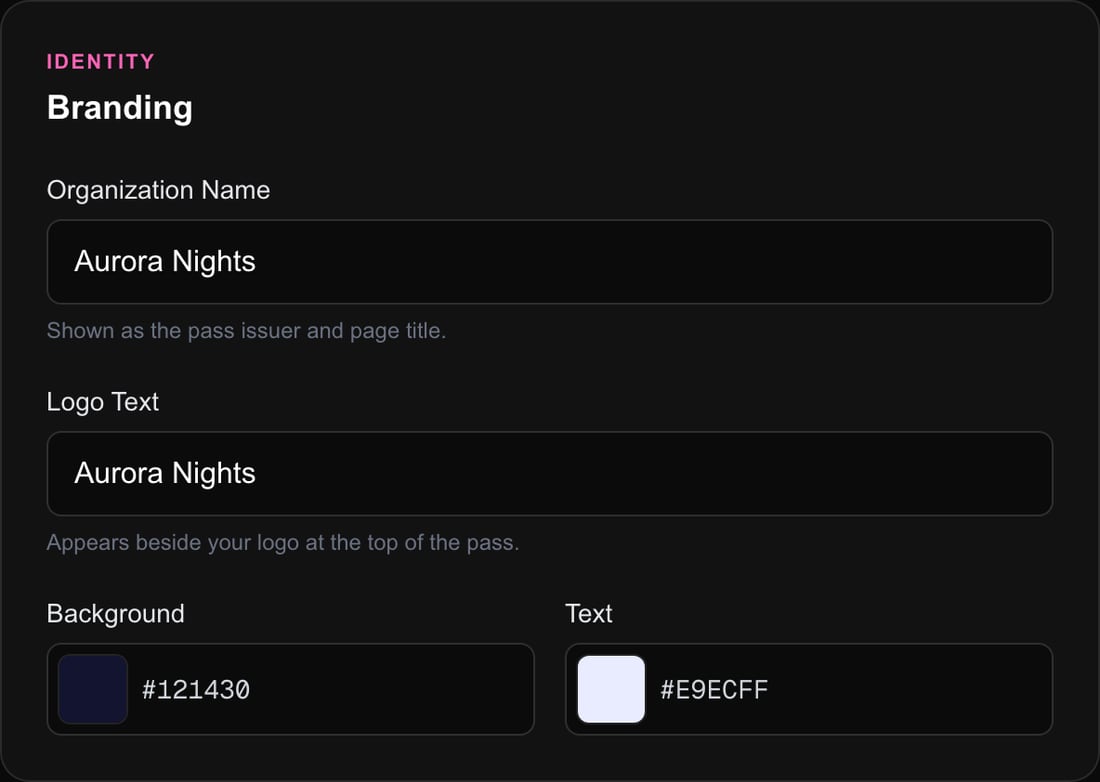
Branding
Set your organization name, the logo text shown at the top of the pass, and your background & text colours. Pick colours that sit well together — the designer warns you if they're too close to read.
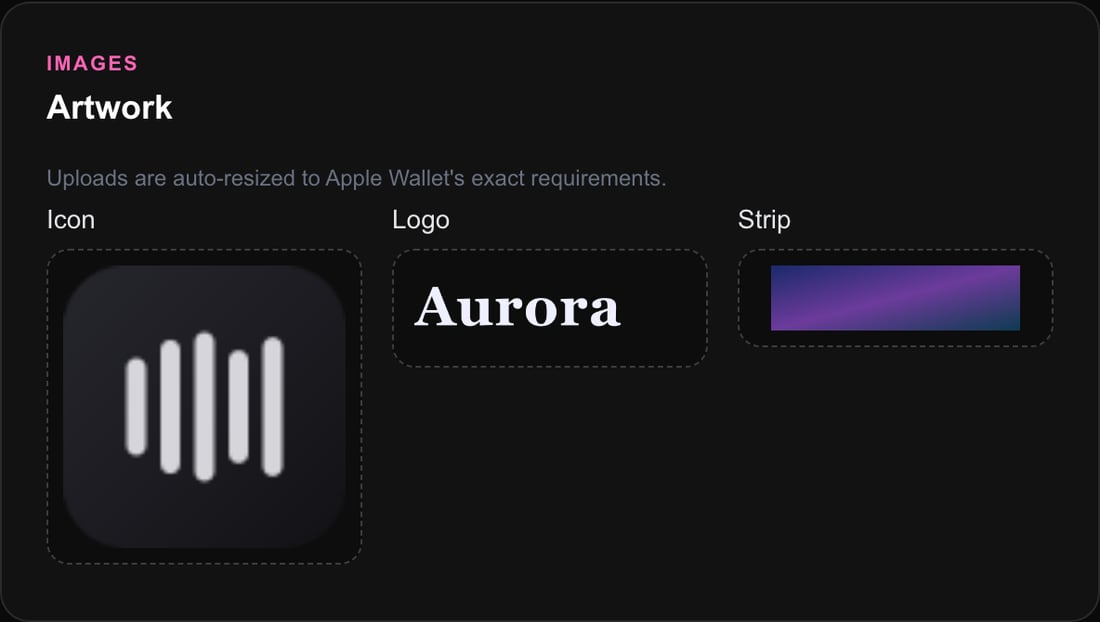
Artwork
Upload your icon, logo, and strip image. They're automatically resized to Apple Wallet's exact requirements, so you don't have to think about dimensions — just use a PNG or JPG.
Wording
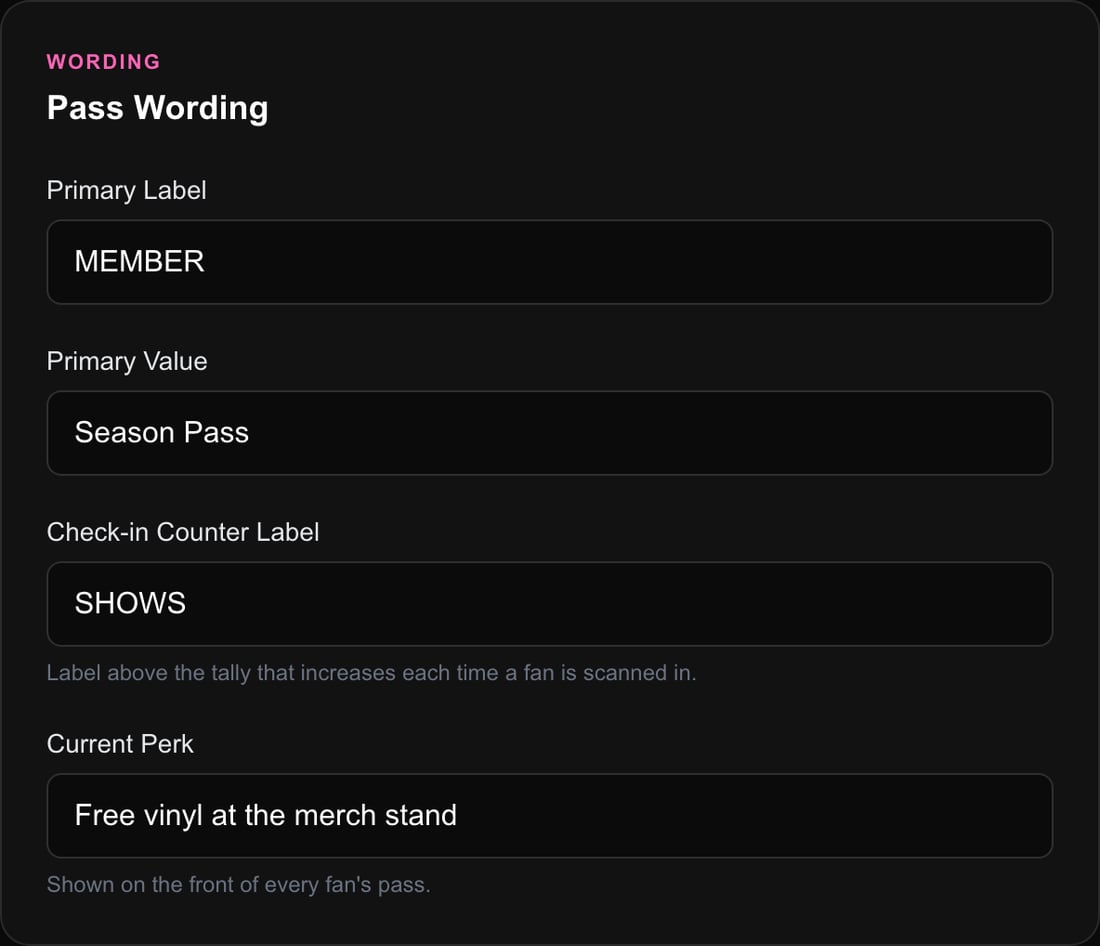
Every piece of text a fan sees is editable and grouped by where it appears — the pass itself, your join page, and the fan portal. Leave a field blank to fall back to a sensible default.
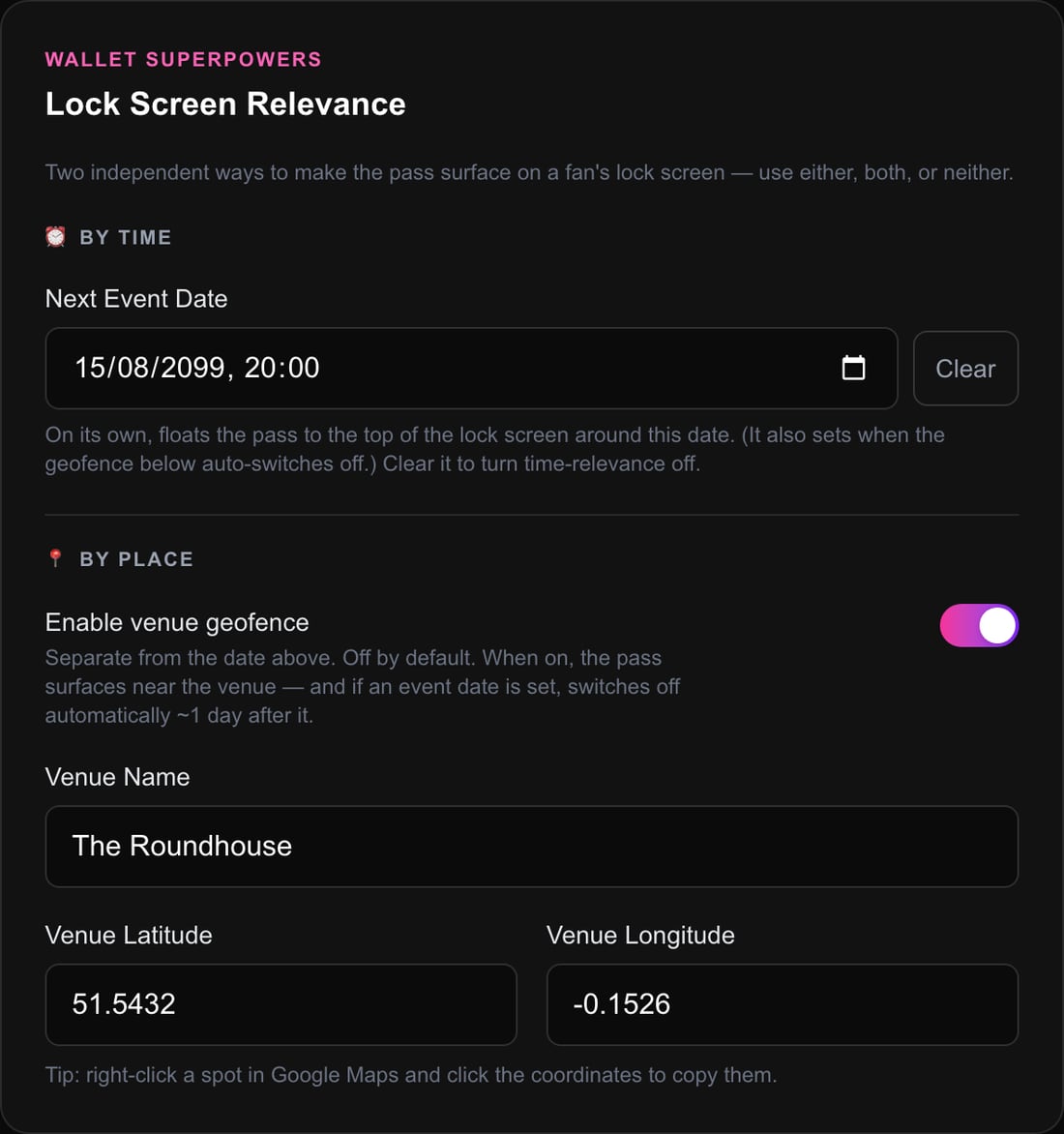
Lock-screen relevance
This is where the pass earns its keep. Two independent ways to make it surface on a fan's lock screen:
- By time — set your next event date and the pass floats to the top of the lock screen around then.
- By place — turn on the venue geofence and the pass appears when a fan arrives at your coordinates.
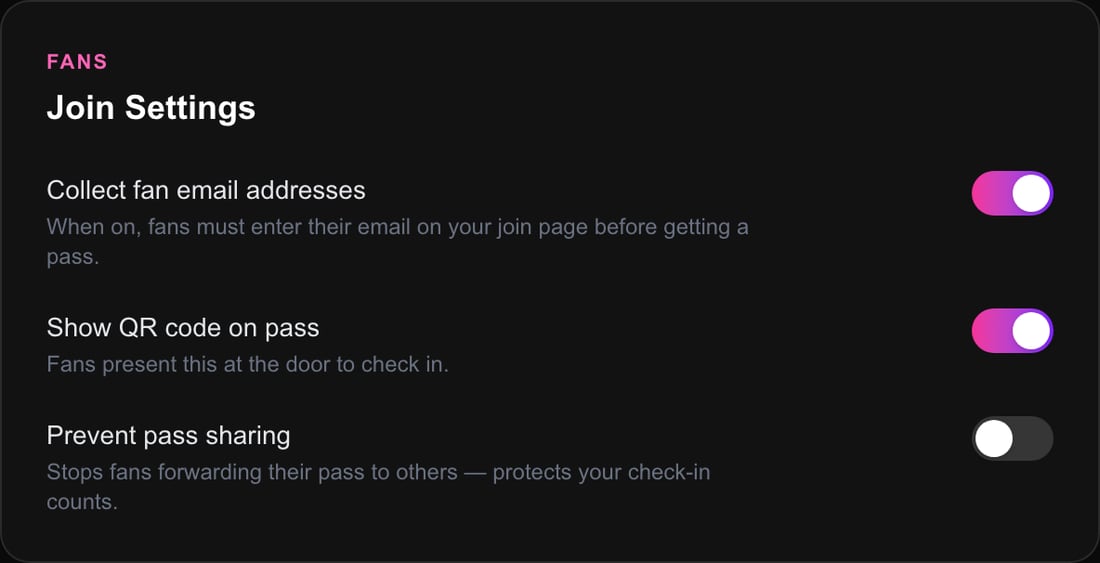
Join settings
Decide whether fans must enter an email to join, whether the pass shows a check-in QR code, and whether passes can be shared. Then hit Save Changes — new passes use your design immediately.
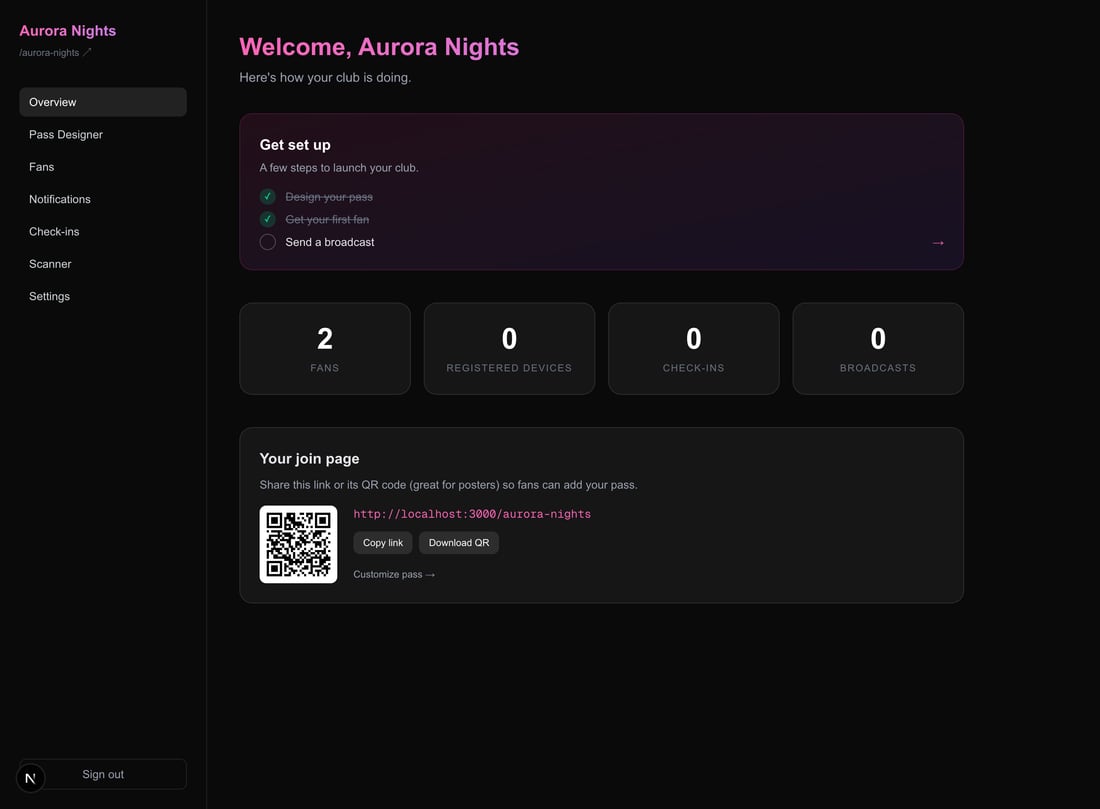
Share your join page
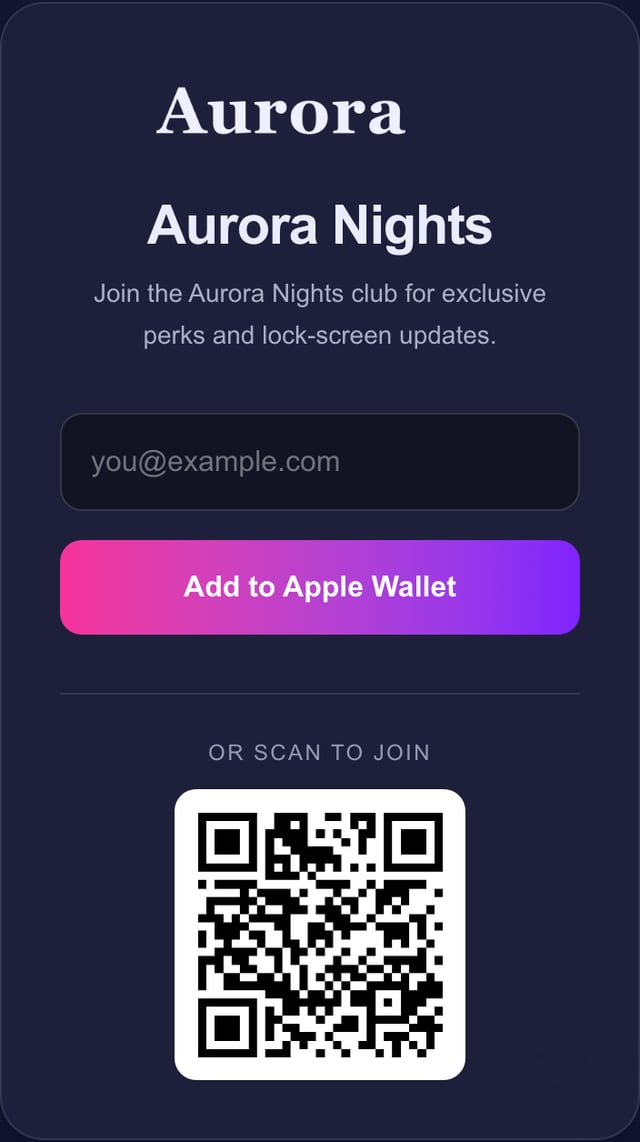
Your dashboard gives you a shareable link and a QR code (perfect for posters and socials) — one click to Copy link or Download QR. Fans open the page, tap Add to Apple Wallet, and they're in. Visitors on Android or desktop get a friendly nudge to open it on their iPhone instead.
Check fans in
At the door, open the Scanner tab and point your phone at a fan's pass QR code. Each scan bumps their check-in tally and can update their pass on the spot. Scan the next person straight away — no page reloads — and a running count keeps you oriented through a busy night.
Send updates
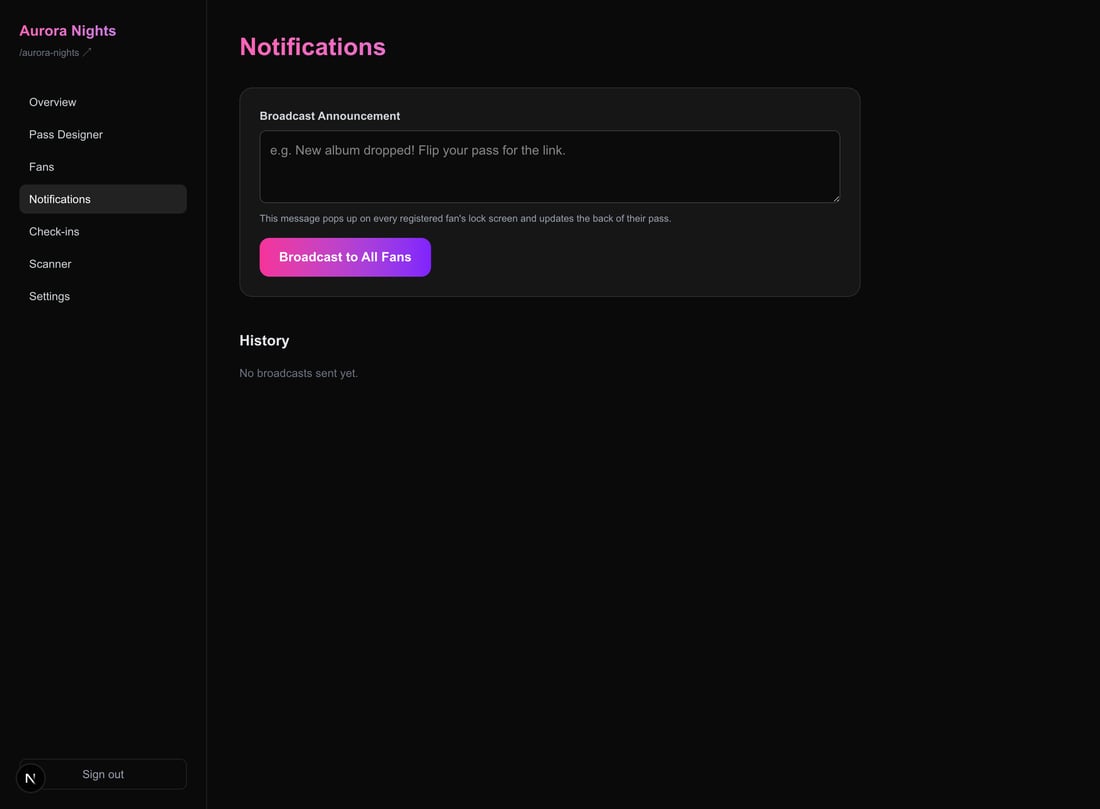
From Notifications, write a message and broadcast it. Every registered fan's pass wakes up, pulls your latest design and message, and shows it on their lock screen. You get a delivery count and a full history of what you've sent.
Manage your club
The Fans tab lists everyone who's joined — when they joined, their check-ins, and whether their pass is installed — and lets you remove anyone. Under Settings you can change your club name, email, and password anytime.
